Importing and Exporting Content
To access the Import feature, click on the Edit Course hyperlink in the default course navigation bar.

D2L supports the copying, importing, and exporting of course content. Commonly, textbook publishers and other learning resource materials companies will provide instructors with course content. This content can be easily imported into your course using the Import utility found within the Import/Export/Copy Components tools. When importing a file, it is important to avoid unzipping or decompressing the import file. The import feature can accept only .ZIP files.
-
Importing External Content (.ZIP files)
Importing External Content (.ZIP files)
- From the Course Administration menu click Import/Export/Copy Components.
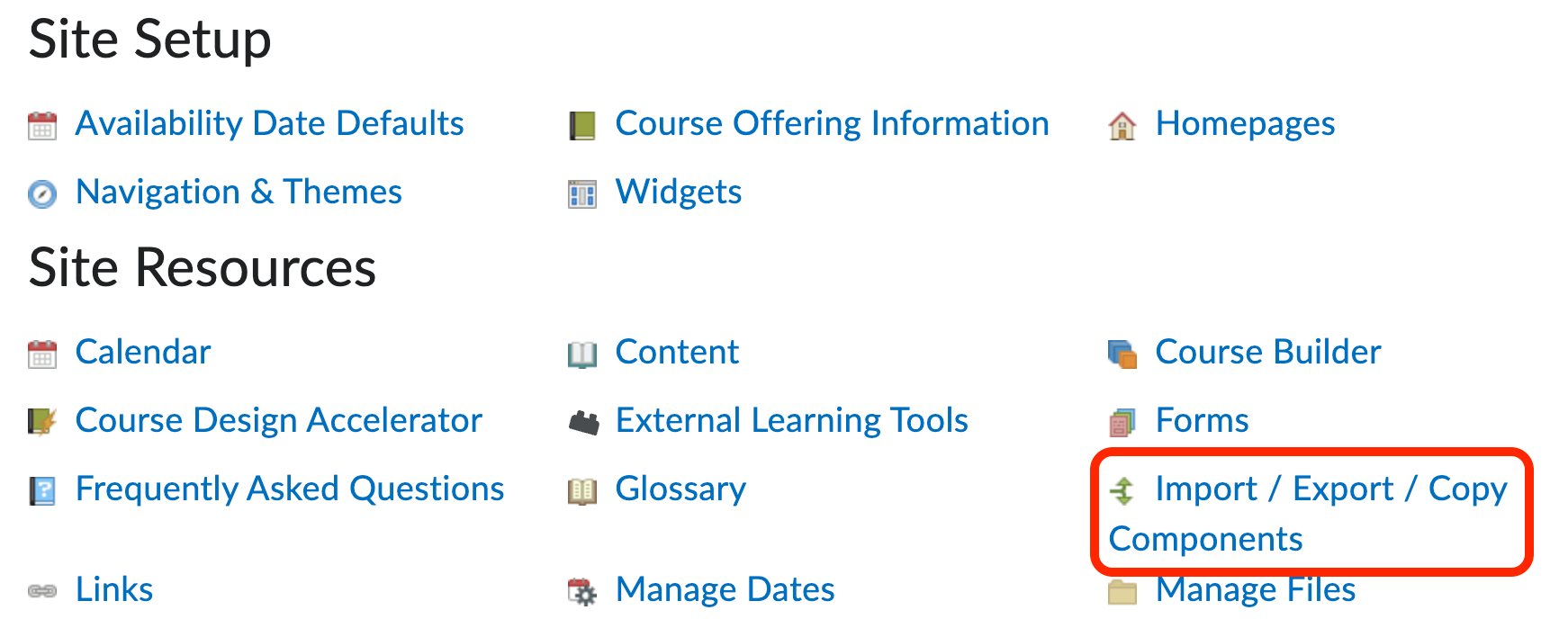
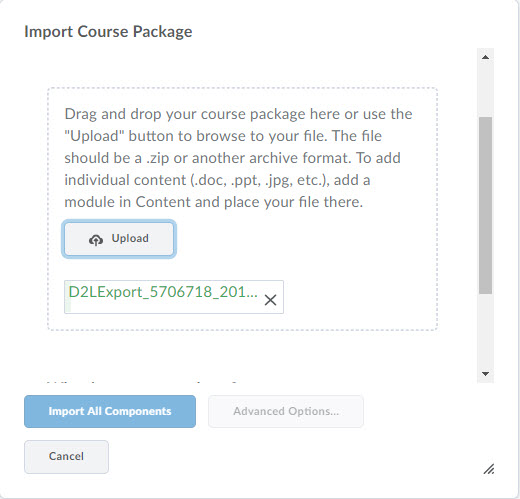
- Click the Import option radio button and then click Browse.

- Select your zip file (do not unzip the file).

- Click Start.
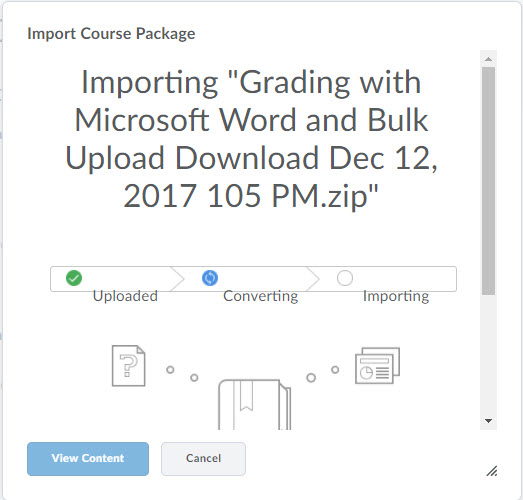
- Once D2L has processed the file, click Continue.
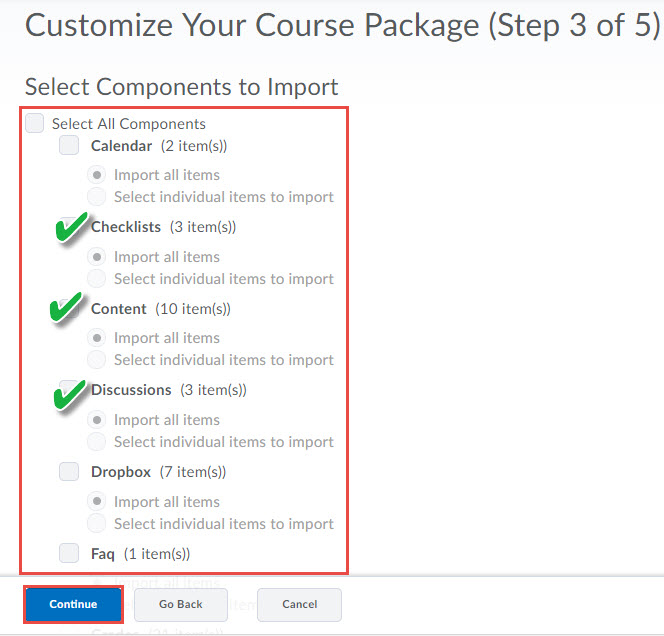
- You’ll then need to select the quiz , question library, and/or other content. Then, click Continue.
- Click Finish to complete the importing process.
- From the Course Administration menu click Import/Export/Copy Components.
-
Exporting Course Content
Exporting Course Content ( Creating .ZIP files)
You can export your course content in order to create a backup of your course. Additionally, you may need to export content in order to import the same content into a separate course or other instance of D2L.
- From the Course Administration menu click Import/Export/Copy Components.
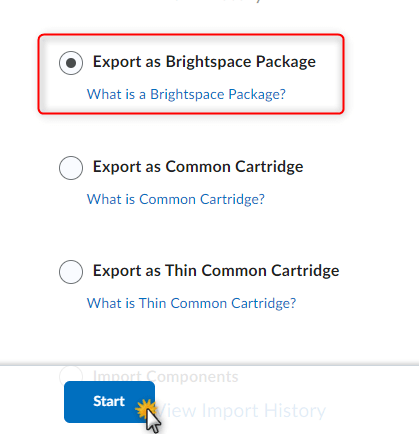
- There are three export options:
Export as Brightspace Package - This is the standard export for D2L and it will contain all the necessary resources you need to share your with another D2L site. This is used most often when importing into another D2L course.
Export as Common Cartridge - This specification is an open export cartridge that is independent of D2L. This method is used when an LMS independent course cartridge is needed.
Export as Thin Common Cartridge - This is also an open export cartridge that is LMS independent and was created to package Learning Tools Interoperability (LTI) Links, Web Links, and Metadata. - Choose the method you wish to use and click theStart button.
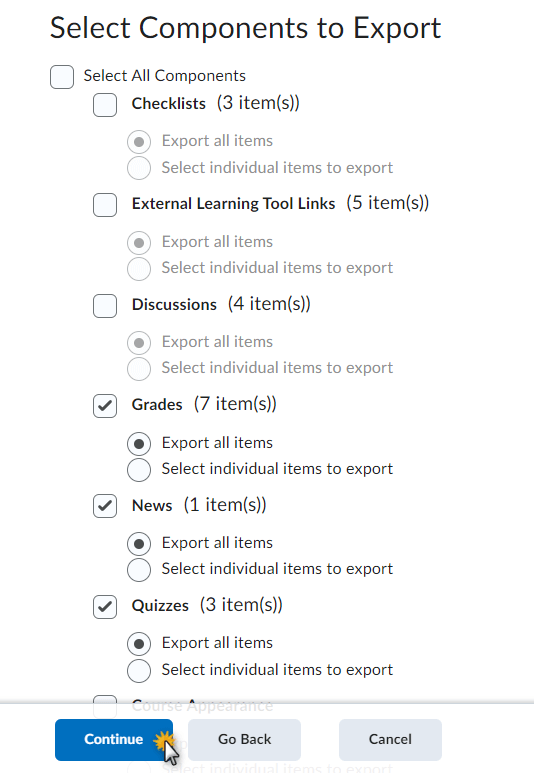
- Select the course components you would like to export by selecting the checkbox(es).
Optionally, you may select to export you entire course by choosing the Select All option. After you have selected all of the components you want to export, click Continue.
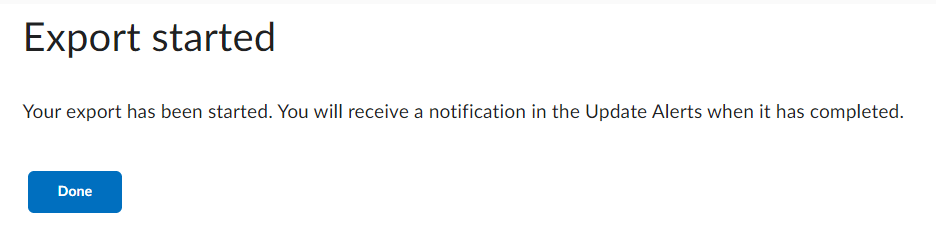
- Once you have selected your components, click Export. D2L will display the message below to show the Export has started.
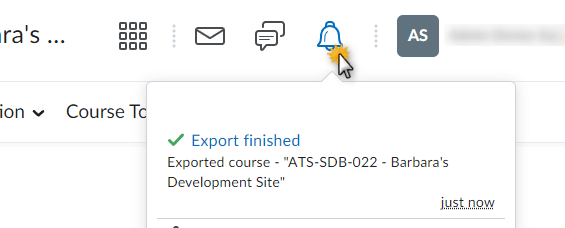
- You’ll then need click on the Update Alerts icon at the top of the page and click on the Export Finished message. This is where you will find the link to download the ZIP file.
- Then you can download the file generated by the export process. To do so, click the
hyperlink labeled Click here to download the export Zip package. The file will be saved in your default Downloads location.
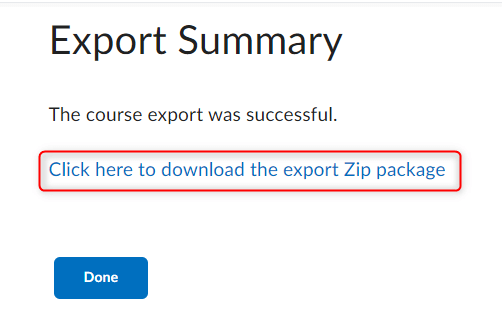
- Click Done to complete the export process.
- From the Course Administration menu click Import/Export/Copy Components.