Accessing the Import/Export Copy Components Tool
The Import/Export/Copy Components tool is located in the Course Administration menu. Navigate to this menu by clicking the Edit Course link on the default course navigation bar. The Import/Export/Copy Components tool is located in the Site Resources category.

Once the content, assignments, discussions, etc. are set up, they can be copied to another course or to an empty course shell for a course in an upcoming semester.
-
Copying An Entire Course from a Past Semester
Copying An Entire Course from a Past Semester
- Enter the empty course that you wish to copy other materials into (destination course).
- Find the Edit Course link located to the far right side of the navigation bar. This action will take you to the tools used to manage your course. This link is not visible to students in your course.
- Select Import/Export/Copy Components from the available choices.
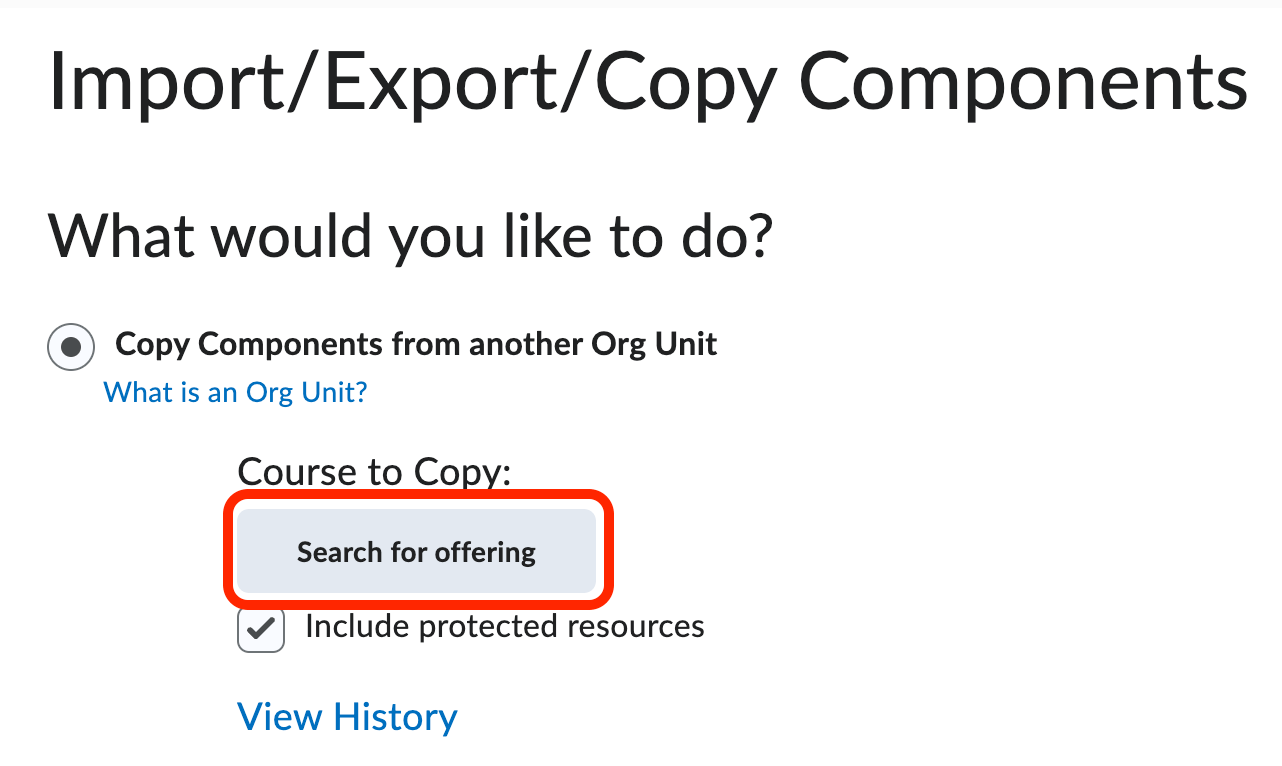
- Copy Components from Another Org Unit will be pre-selected. Click the Search for Offering button to search for and select the course from which you will copy materials.
- The list of courses to which you have instructor and / or Teaching Assistant access
will appear. Select the course containing the materials, or search for the course.
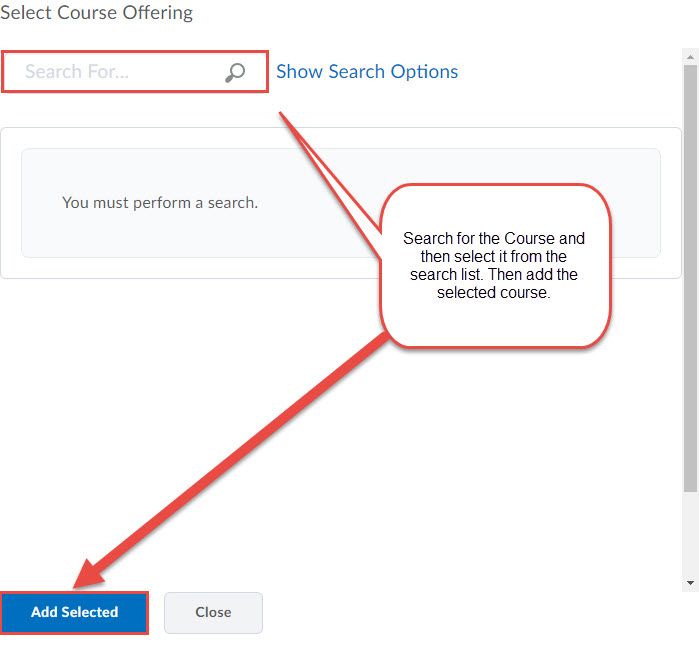
- Click Add Selected after locating and selecting the Source Course. You may only copy content from courses in which you are enrolled as a teaching assistant or instructor.
- After selecting the course offering the page will refresh and the option to Copy all Components and Select Components will be active and available.

- To copy everything into the source course click Copy All Components.
- All of the items will be selected and everything will be copied into the source course.
You will immediately see a status bar indicating that the course copy is taking place.
When the copy is complete you will see a log of the course copies completed in this
shell.

-
Copying Selected Components from a Past Semester
Copying Selected Components from a Past Semester
- Enter the empty course that you wish to copy other materials into (destination course).
- Find the Edit Course link located to the far right side of the navigation bar. This action will take you to the tools used to manage your course. This link is not visible to students in your course.
- Select Import/Export/Copy Components from the available choices.
- Copy Components from Another Org Unit will be pre-selected. Click the Search for Offering button to search for and select the course from which you will copy materials.
- The list of courses to which you have instructor and / or Teaching Assistant access
will appear. Select the course containing the materials, or search for the course.
- Click Add Selected after locating and selecting the Source Course. You may only copy content from courses in which you are enrolled as a teaching assistant or instructor.
- After selecting the course offering the page will refresh and the option to Copy All Components and Select Components will be active and available.
- To select individual items to copy click the Select Components button.
- Choose the tool that you wish to copy and then select individual items to copy. Make sure associated files is checked so you don't get any broken links. Click Continue.
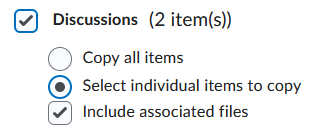
- Select the individual item(s) that you wish to copy. Click Continue.

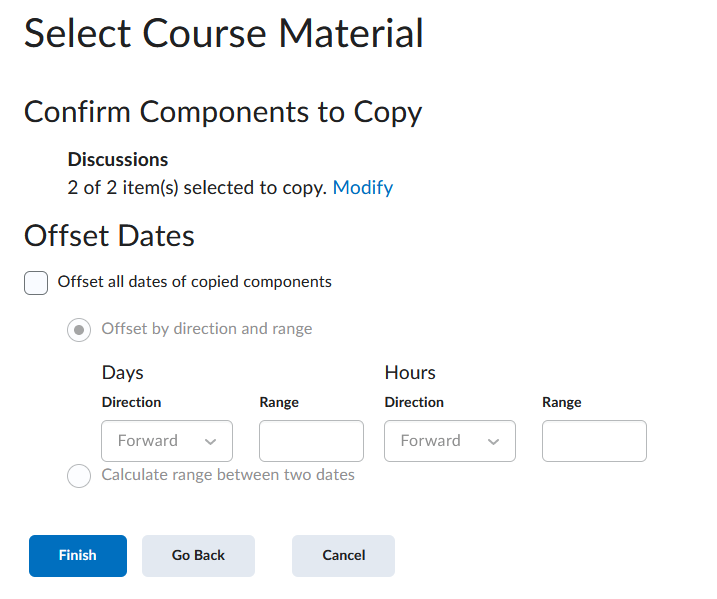
- The Confirm Components to Copy screen will appear. This screen also gives you the option to Offset Dates. You can always change dates later. Click Finish when you are sure everything looks okay.