Providing accessible content to everyone at ETSU is an ethical imperative, a university policy requirement, and a federal law. The Office of University Marketing and Communications, the Center for Teaching Excellence, Academic Technology Services, and Disability Services all offer resources to help students, faculty, and staff create accessible digital content.
Recorded Trainings for Accessibility
- ▶️ Getting Familiar with Digital Accessibility (presented by Disability Services, ATS, CTE)
- ▶️ Creating Accessible Course Resources (presented by ATS)
- Fixing Accessibility Problems in PDFs (presented by Marketing and Communications)
- Creating Accessible Word Documents from Scratch (presented by Marketing and Communications)
- Creating Accessible PowerPoint Presentations (presented by Marketing and Communications)
Guides and Resources
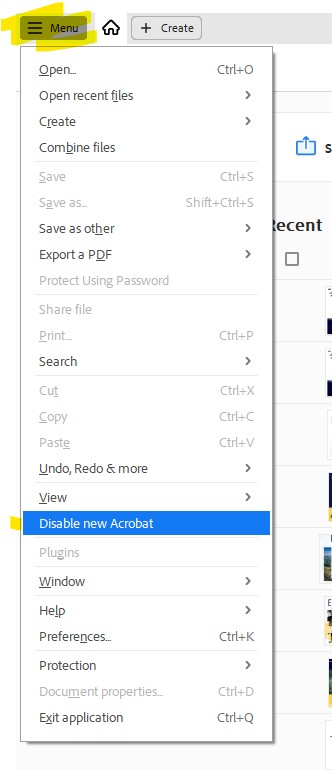
Acrobat Pro is needed in order to check and remediate PDF documents for accessibility. ETSU has purchased an Acrobat license via an ETLA (Enterprise Term License Agreement) or VIP program, you can download the installers fromthis Adobe Acrobat Download page. You do not need to pay for or have an Adobe Creative Cloud License. After the download is complete, follow the installation instructions on the Adobe Acrobat Download page to begin the installation.
- 📖 Creating Accessible Digital Content (full asynchronous course)
- 📖 Where to Store Digital Documents (full webpage)
- 📄Microsoft Word, Excel & PowerPoint Accessibility Tools
- 📄Adobe Acrobat Pro
- 📄Zoom Accessibility Tools
- 📄Panopto Accessibility Tools
- 📄Accessibility Checklists
Upcoming Accessibility TrainingsAll Events
Website Content Audit and Clean Up
All ETSU employees are responsible for making their digital content accessible.
To ensure all public-facing content meets accessibility standards, the Office of University Marketing and Communications is working closely with content creators and managers across campus to clean up and remove outdated content and content that may not be fully accessible.
Any website content that has not been updated in the last five years OR that is not fully accessible will be subject to automatic removal by the UMC web team.
More Tips and Tricks
-
Tagging text as a heading
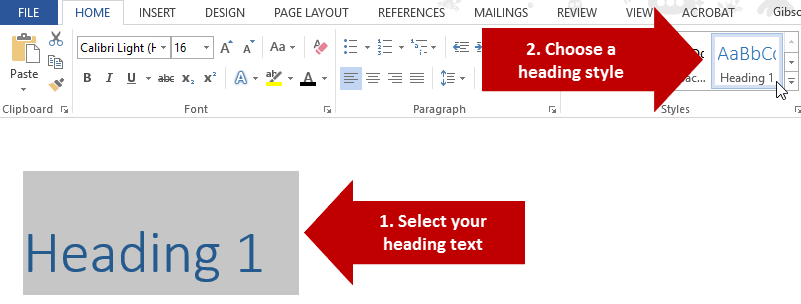
In order for a heading to be considered accessible it has to have more than just unique visual formatting. It has to be tagged as a heading. In Microsoft Word, tagging can be done using the Styles menu on the Home tab.

To use this menu, simply select the text that you want to tag as a heading, and then select the appropriate heading level in the styles preview menu (shown below).
-
How to apply headings level 3 or higher
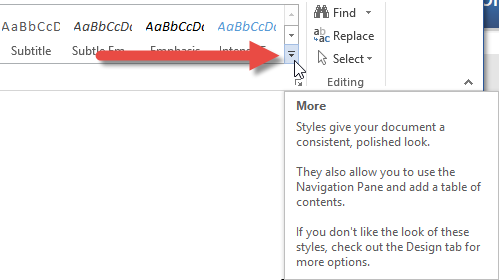
By default the styles menu only includes pre-defined styles for Heading 1 and Heading 2. However, you can utilize more levels if needed. To do this, select the text that you would like to tag and then click on the More arrow button in the Styles menu, and then select Apply Styles.
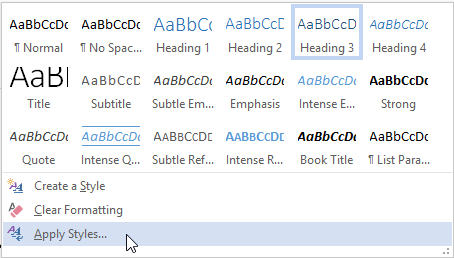
This will open up a small panel menu that will allow you to use a wide range of styles not shown in the styles tab menu. In order to use other heading levels, you can simply type the name of the style into the search box (e.g. Heading 3) and then click Apply.
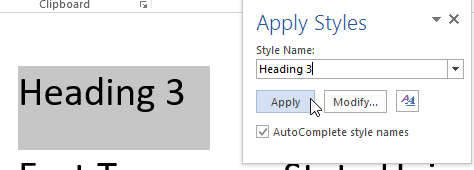
Once you have applied an additional heading level using the Apply Styles menu it will then appear as an option in the Styles menu in the Home tab.

-
Properly structured heading levels
Heading levels are used to indicate the hierarchy of content sections. The heading levels start at 1 and descend hierarchically with each successive number (2, 3, etc.). Therefore, Heading 1 is the top-most level, and would be appropriate for things like chapter or major section titles. Heading 2, and everything under it, would fall under Heading 1, and so on.
When using multiple heading levels in your document hierarchy, you need to be sure to descend through levels incrementally, without skipping levels along the way simply for the sake of aesthetics. If you skip through levels then you will create a document with unorganized heading tags that will not comply with accessibility standards. To illustrate this concept, it may be helpful to think of headings as being in a nested list. The list below illustrates an improper hierarchy that arbitrarily skips around between levels.
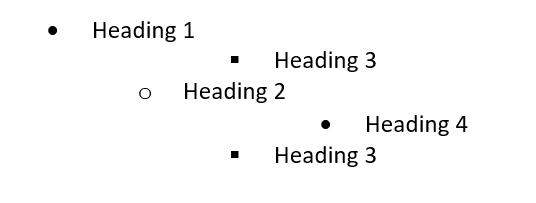
You can understand how a structure like the one above would be confusing. In order to avoid such confusion, you instead need to organize heading levels in a way that makes sense, as in the example below.
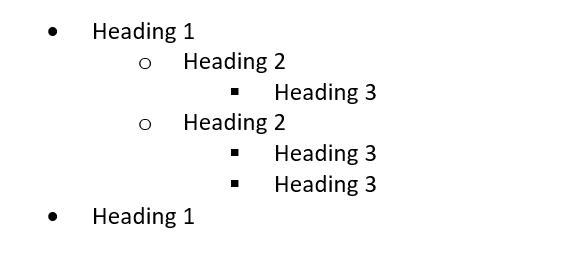
-
Meaningful links
Document authors will often include URLs in their documents to point readers to files or pages on the Internet. However, including full URLs can frustrate users who rely on screen readers, because they are forced to listen to the entire URL being spelled out character by character. For example, a URL like / would be real aloud as Link: H-T-T-P colon forward slash forward slash W-W-W dot E-T-S-U dot E-D-U forward slash. This is not the most convenient way to be led to the ETSU home page.
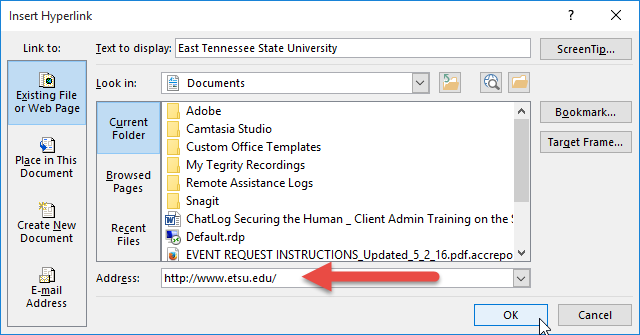
Rather than spelling out URLs, hyperlinks should instead be embedded within meaningful text which describes where the link goes. For example, if you want someone to visit the ETSU home page then you could simply hyperlink some text that says "visit the ETSU homepage." This provides the link while also describing where the link goes.
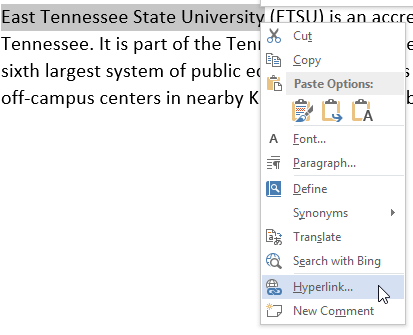
To create an embedded hyperlink, just select the text you want to add a link to, and then right click the selected text and choose Hyperlink from the context menu.
Resources
The ETSU Brand
Our brand guidelines ensure the university has a unified look and feel when telling the ETSU story.
We invite you to become a brand ambassador and help us comunicate how ETSU makes an
impact in our region and beyond.